Get Started as a Teacher
Learn how to set up your classroom, create vocabulary decks, and track student progress.
Create Free Teacher AccountCreate Your Account
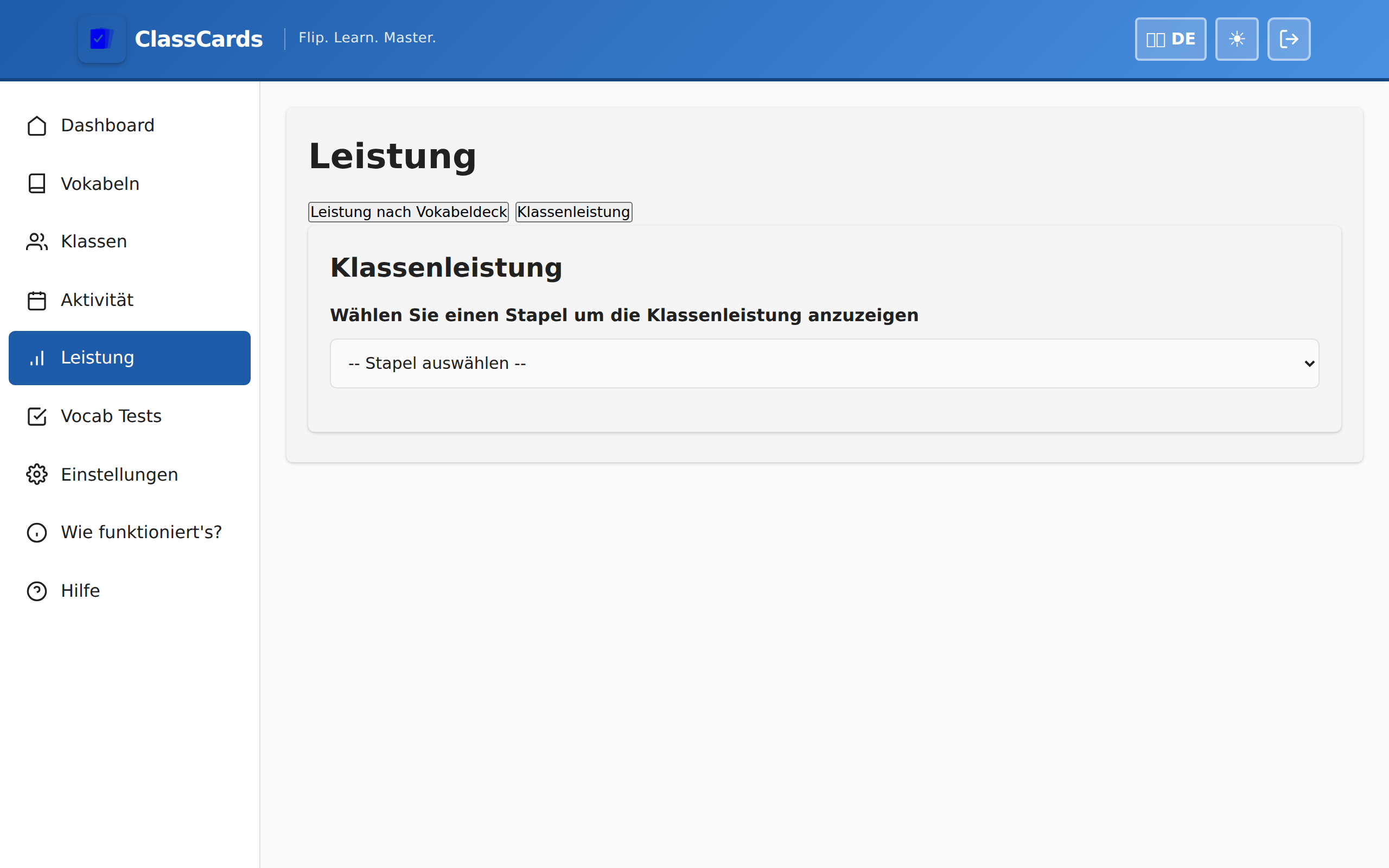
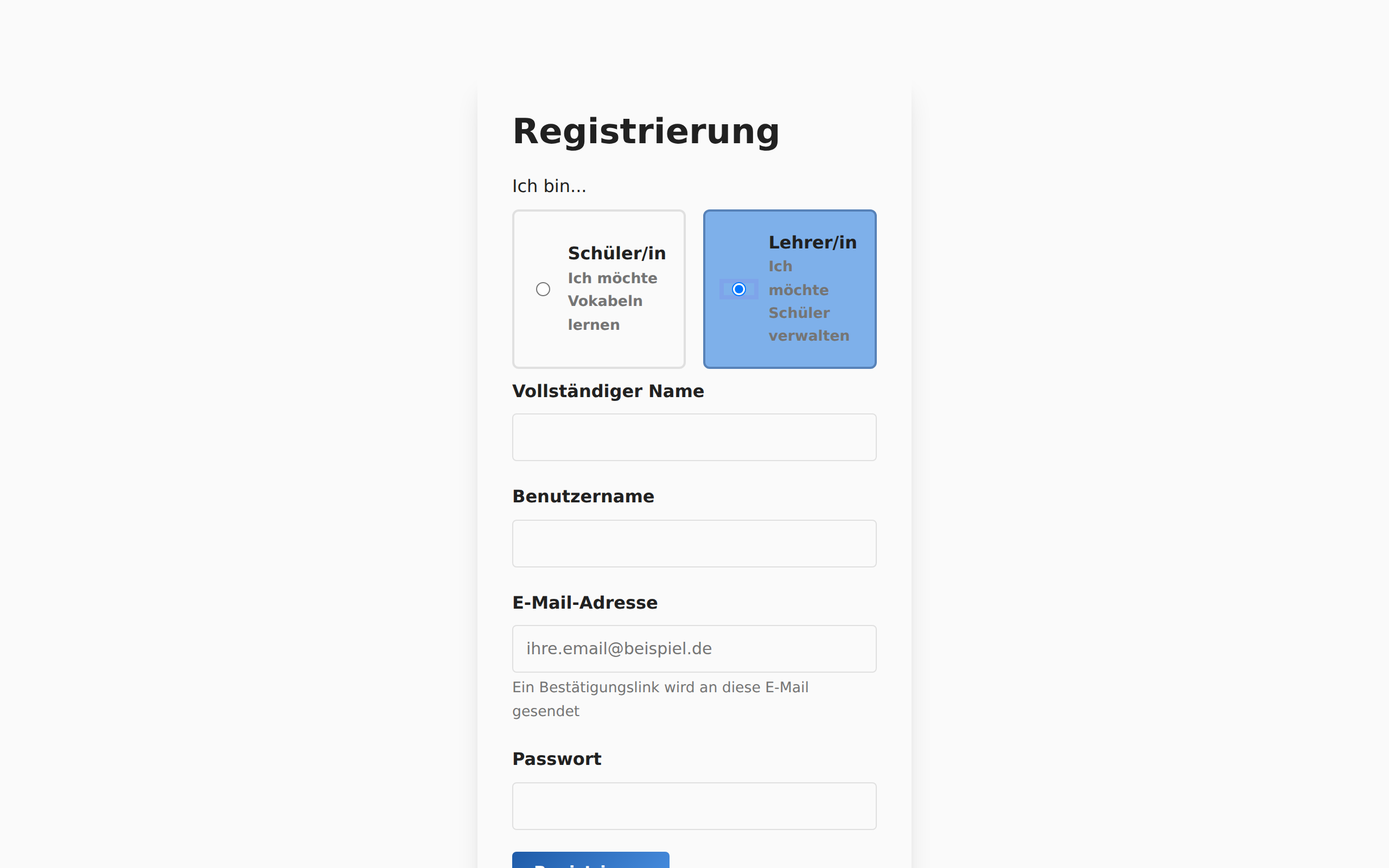
Getting started is easy. Create your free teacher account in just a few steps.
- Go to the ClassCards homepage and click "Register"
- Select "Teacher" as your role
- Fill in your name, email, and create a password
- Check your email for a verification link
- Click the link to activate your account
Explore Your Dashboard
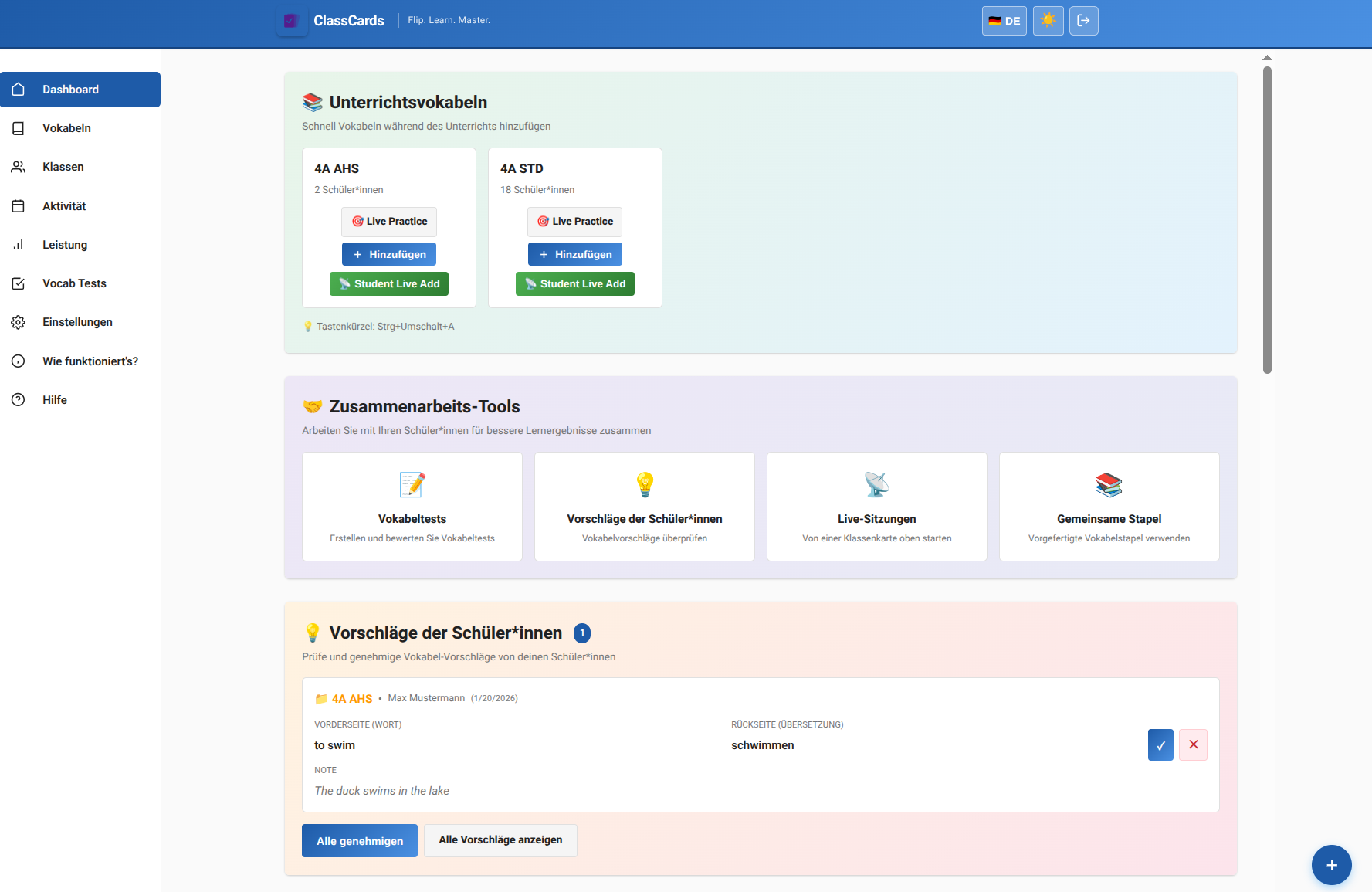
Your dashboard is your command center. Here you'll find everything you need to manage your classes.
- Quick statistics showing students, decks, cards, and classes
- Quick action buttons for common tasks
- Recent activity from your classes
- Active decks and classes at a glance
Add Your Students
Create accounts for your students so they can start learning. You have two options:
Quick Create
Add students one at a time with auto-generated usernames and passwords. Perfect for adding a few students quickly.
CSV Import
Upload a spreadsheet with all your students at once. Ideal for setting up an entire class.
Student login credentials are automatically generated. You can print or export them to share with your students.
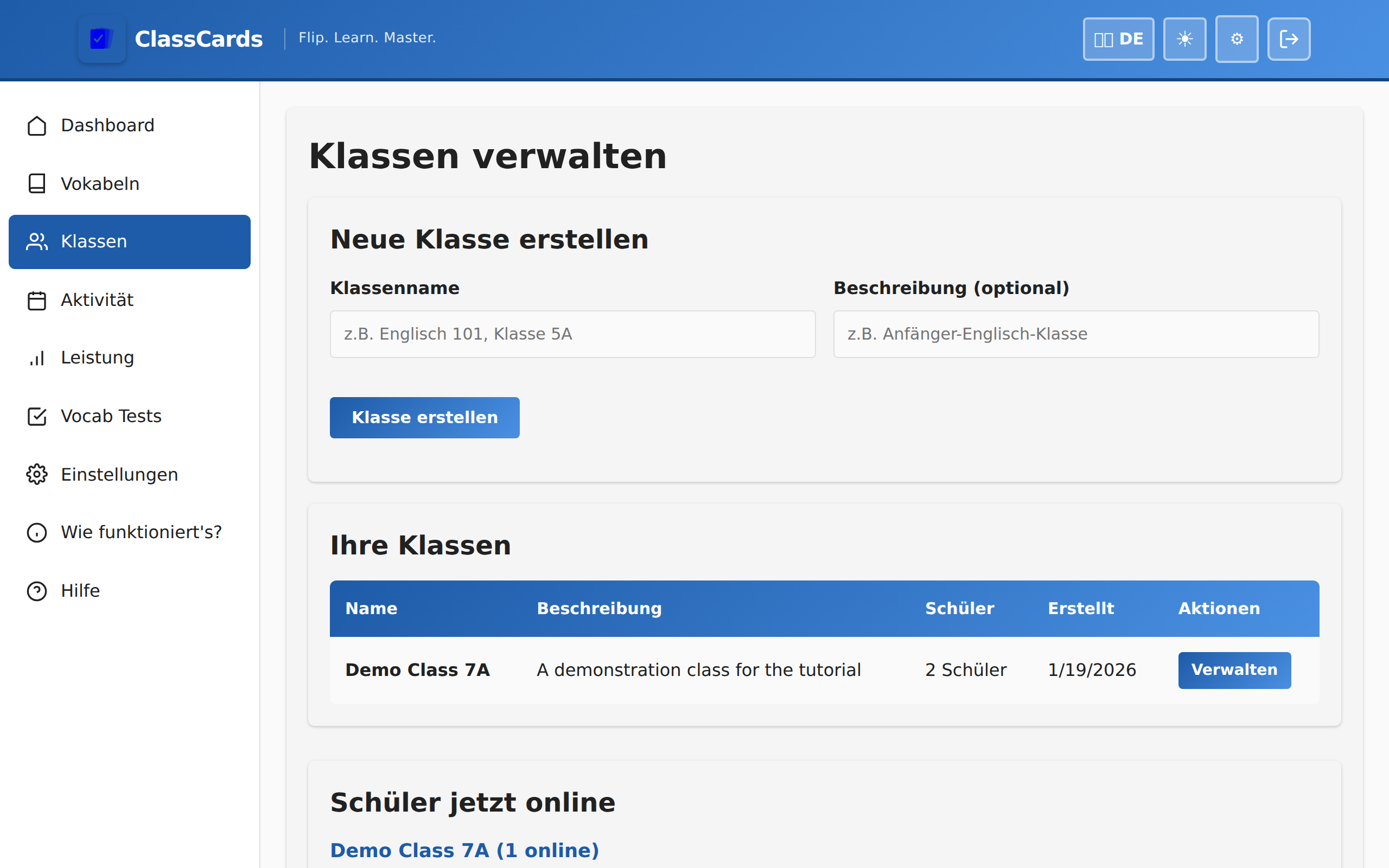
Organize into Classes
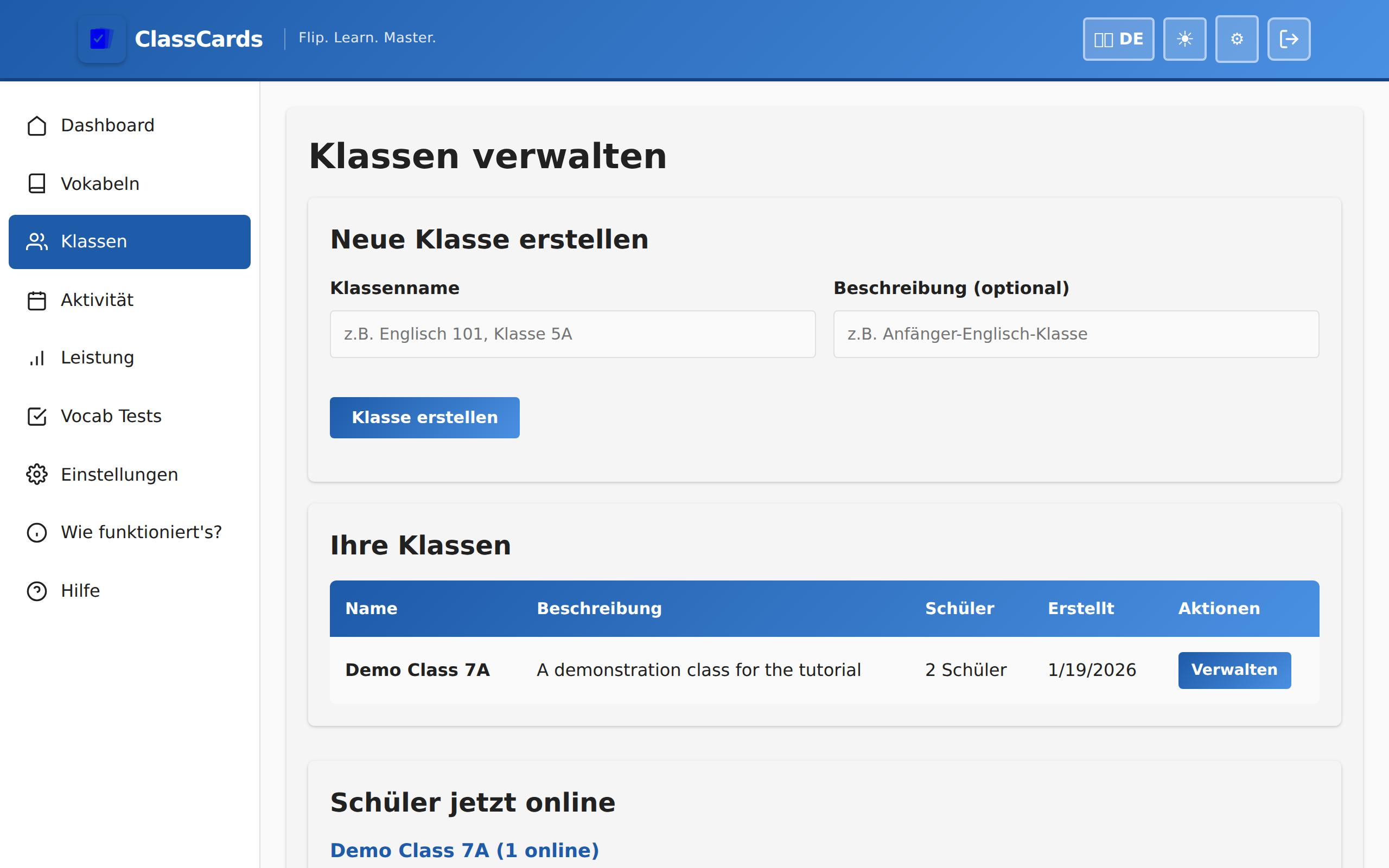
Classes help you organize students and assign vocabulary decks to groups.
- Go to "Class Management" in the sidebar
- Click "Create New Class"
- Enter a name (e.g., "English 7A", "Spanish Beginners")
- Add students by selecting from your student list
- Save your class - you can edit it anytime
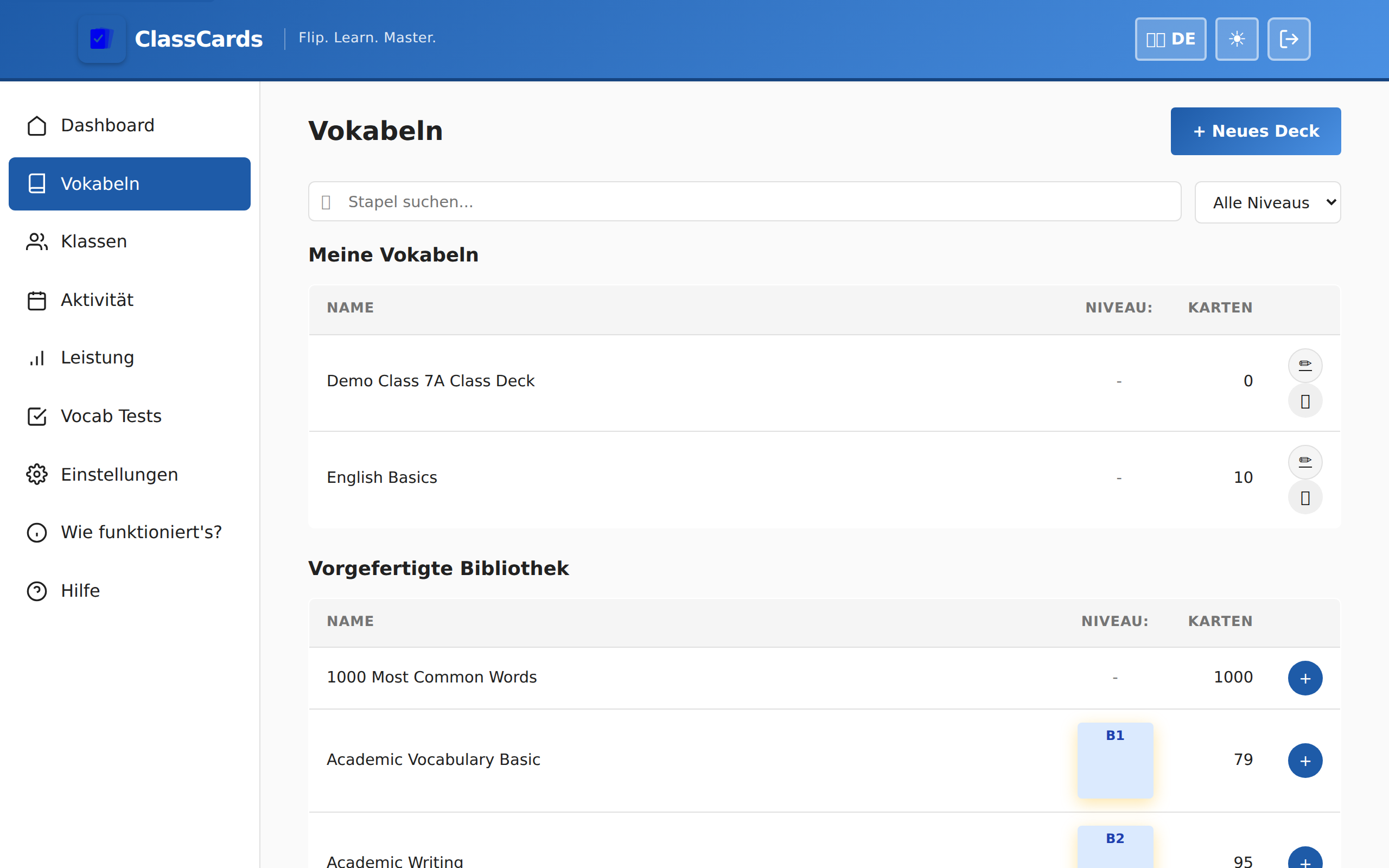
Build Vocabulary Decks
Create vocabulary decks for your students to practice. You have three options:
Create Manually
Add cards one by one with word, translation, and example sentences.
Import CSV
Upload a spreadsheet with vocabulary to create decks quickly.
Use Library
Browse and copy pre-made vocabulary decks from the library.
Assign Decks to Students
Once you have decks ready, assign them to individual students or entire classes.
- Open the deck you want to assign
- Click "Assign Deck"
- Select individual students or entire classes
- Confirm the assignment
Students will see the assigned decks on their dashboard and can start practicing immediately.

Track Student Progress
Monitor how your students are doing with detailed performance analytics.
- See which students have practiced recently
- View accuracy rates and time spent
- Identify difficult words students struggle with
- Export performance reports for grading
How Spaced Repetition Works
ClassCards uses the Leitner system to optimize learning. Cards move through 5 boxes based on student performance: